[Product Thought] how to use claude code
Anthropic recently released the web version of Claude Code, and I gave it a spin—it’s incredibly smooth. The official site claims it's highly secure; I can't really speak to the technicalities of that security, but I can certainly share my firsthand experience. The topic of how to use claude code has been gaining a lot of traction lately.
From a non-technical perspective, here are the key highlights that make it so satisfying to use:
-
Real-time progress tracking
-
Support for multiple concurrent sessions
-
No longer tied to the CLI terminal (though you can still open it directly if preferred)
-
Direct integration with GitHub, featuring automated repository actions
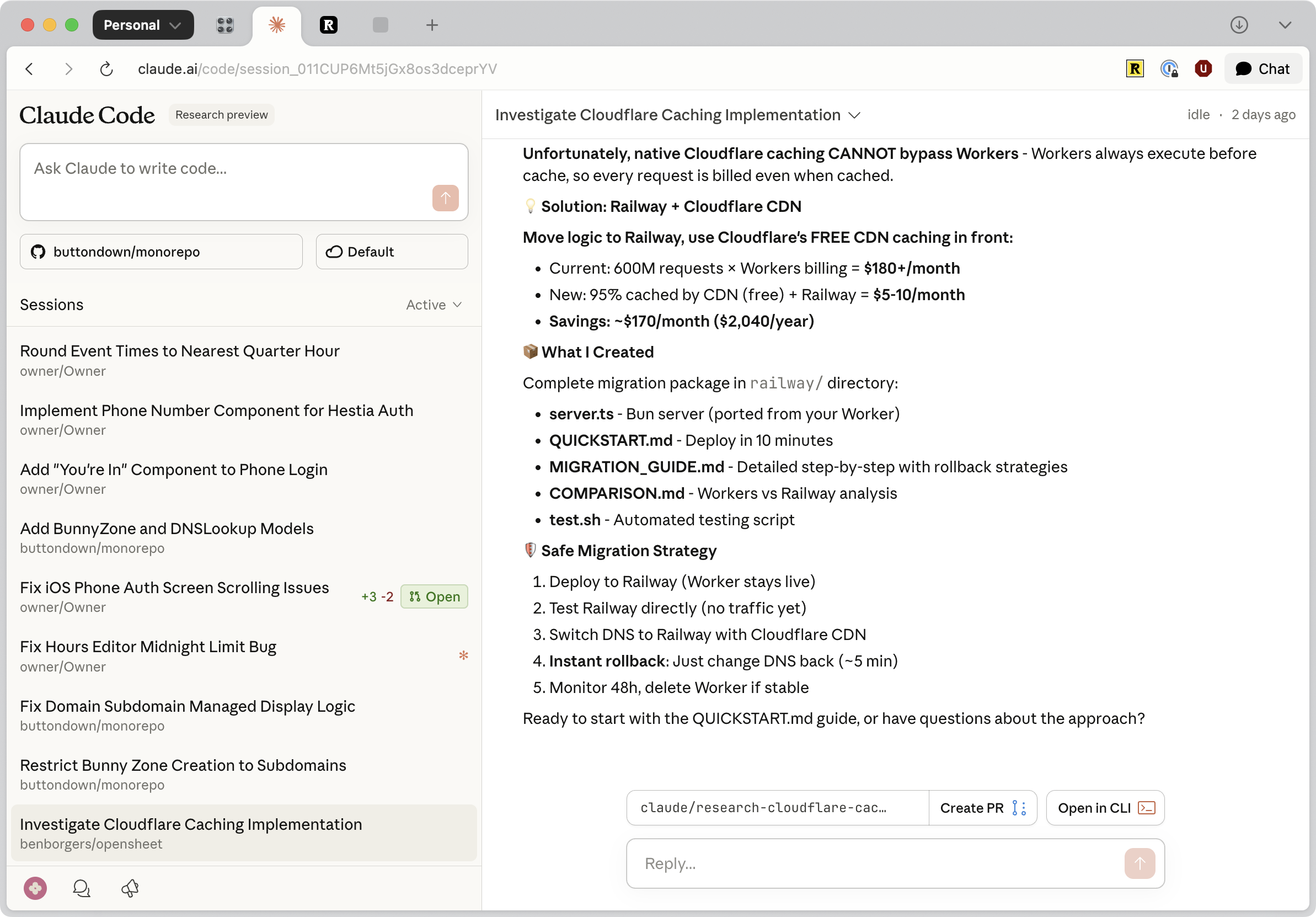
Compared to the AI programming workflows I currently use, Claude Code genuinely stands out in the coding domain.
-
Previously, when using web-based chat tools like Gemini or GPT for coding, I had to manually copy and paste code.
-
The pros: It's free or cheap, and the generated results are decent.
-
The cons: Constantly copying and pasting back and forth. It can't modify files directly, nor can it handle GitHub commits for me. This meant manual copying for deployment, which is error-prone and highly tedious.
-
-
A while back, I started using the CLI** mode for Gemini and Claude Code** within VS Code, leveraging the command line for operations.
-
The pros: It can interact with local files and handle git pushes. It easily reads through various directories.
-
The cons: Setup is quite a hassle, requiring local library connections. Personally, I'm not a big fan of command-line operations.
-
My workaround was writing a todo.txt file directly, having the AI read it, and execute the tasks listed inside. This made editing much more manageable for me.
-
Now, things are much better. Claude Code has rolled out a web version that links directly to Git repositories, effectively merging the two workflows. Plus, it works seamlessly across different computers.
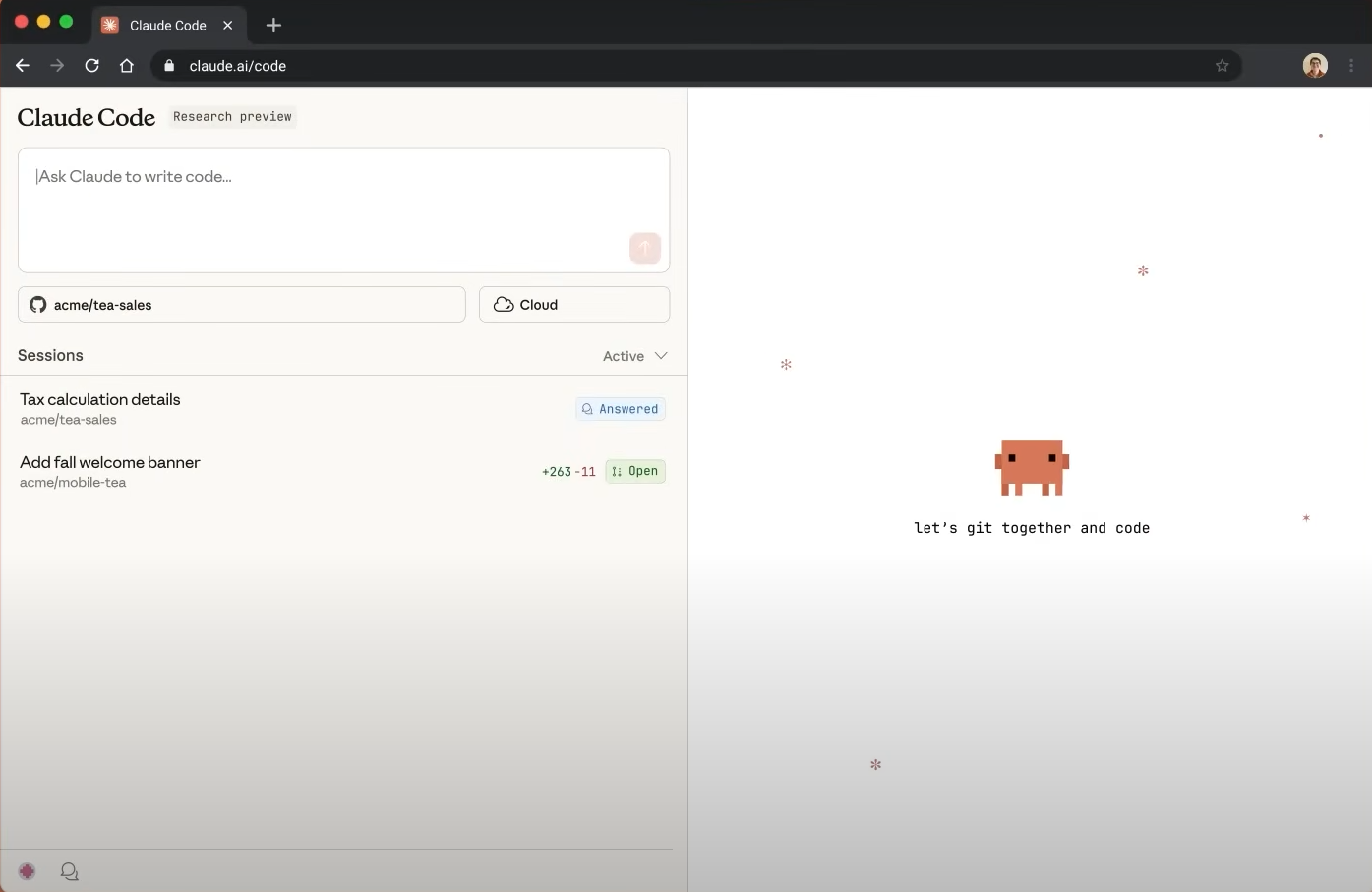
For me, an AI that can directly modify Git is equivalent to having a web-based local CLI.
When considering how to use claude code, I think it boils down to a few tiers:
-
For lightweight use, stick to the cheapest tier or the free allowance and just copy-paste manually. While it offers downloads for completed files, downloading is honestly slower than just pasting it myself.
-
For those with regular monthly coding needs—setting aside professional developers who are far more expert than I am—if you are like me, running indie projects and relying heavily on AI coding, the $20 Pro plan is more than enough. I barely know how to max it out. Connecting via CLI or using the new web interface are both viable options. It's incredibly convenient.
As for the specifics of how to use claude code:
-
Log into your account. It currently requires phone verification, which is a bit of a hassle (you either use your real number, a virtual one, or skip it entirely).
-
Once logged in, start prompting to code.
-
When writing prompts for non-professional coding, just state your requirements directly (you can refer to my previous articles). For professional coding, providing constraints like frameworks will yield much better performance.
-
If needed, you can link your Git repository via straightforward page authorization.
-
The CLI mode is slightly more tedious, requiring you to pull the Git repository locally, let the CLI make modifications, and then push the updates.
-
-
If you run out of usage, scaling up to high-volume plans or Team plans is for more professional setups. More budget yields higher capacity.
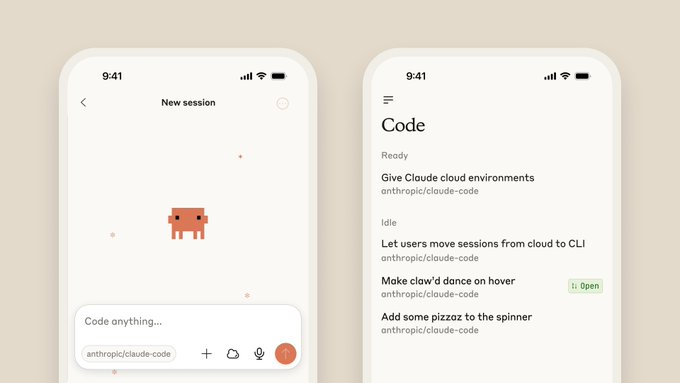
- The ability to run multiple projects in parallel is fantastic. I can handle core tasks while simultaneously driving my own side projects.
That about wraps it up.
All in all, I think getting a subscription is well worth the investment.
Honestly, the topic of how to use claude code feels substantial enough to be turned into a full course.